
Wishlist QR Codes in Seconds for Safer UK Events and Classrooms

Yes, you can make a QR code that opens your wishlist in seconds. Copy your wishlist’s share link, paste it into a QR generator, then download and share the image. People use this for party invitations, printed signs at events and classroom donation drives, anywhere a scannable link beats typing out a URL.
TL;DR:
- Use a master wishlist link for events, a single item link for one gift, or a private reservation link when guests need to avoid duplicate purchases.
- Use static codes for invitations with fixed links; dynamic codes let organizers change destinations and track scans, useful for reusable classroom posters.
- For print, use SVG for resizing or 300 DPI PNG, keep codes at least 2 centimeters square, and choose a plain light background.
- Check that the wishlist link hides personal details, test the code before distribution, and print its readable URL beneath it so recipients can check the destination.
Table of Contents
- What a wishlist QR code is and when to use one
- Step-by-step: create a QR code that links to your wishlist
- How to print, place and share the QR code on invitations and at events
- Safety and privacy: checks for creators and scanners
- Common use cases and quick examples
- Publisher perspective: why we recommend QR-linked wishlists
- How WantThis helps: create, share and turn your wishlist link into a QR code
- FAQ
- Sources
What a wishlist QR code is and when to use one
A wishlist QR code is just a small image that stores a web address. Point a phone camera at it, and the device reads the pattern and opens the linked page, no app download needed on most modern phones.
The choice of link matters. A master wishlist link opens the whole list, a single-item link jumps straight to one gift, and a private reservation link lets guests mark something as bought without spoiling the surprise for others. Weddings and parties usually want the master link, while a classroom collection might point to a short, curated list of specific items.

Step-by-step: create a QR code that links to your wishlist
Turning a wishlist into a scannable code takes a few minutes once you know the order of operations.
- Get your shareable wishlist URL. Open your list and copy the public share link, most wishlist platforms generate this automatically when you make a list.
- Decide between a static or dynamic code. A static code bakes the destination in permanently, while a dynamic code routes through a redirect you can edit later and often comes with scan tracking.
- Generate the code. Paste the URL into an online QR generator or use a platform’s built-in share feature, then pick a file type: PNG for easy sharing, SVG if you need to resize it for print without losing quality, or PDF for invitation layouts.
- Test before you distribute. Scan the finished code on two or three different phones and confirm it opens the right page every time.
Static codes suit a one-off wedding invitation where the link never changes. Dynamic codes make more sense for a reusable classroom poster, since you can swap the destination each term without reprinting anything.
For print, aim for a high-resolution PNG or an SVG file so the code scales cleanly on an A5 invite or an A3 poster; for more insight on how to improve online experiences, see UX tips for retailers. Keep the scannable image at least 2 centimetres square on printed materials, smaller codes are harder for older phone cameras to lock onto from a normal reading distance.
- Use SVG when the code will appear at more than one size (invite, poster, email).
- Use PNG at a resolution of at least 300 DPI for anything going to print.
- Keep a plain white or very light background behind the code, never a busy pattern.
Pro Tip: Save a copy of the original wishlist URL alongside your QR image file so you can regenerate the code later if you switch generators.
How to print, place and share the QR code on invitations and at events
A code that looks fine on a screen can fail completely in print if the contrast or size is wrong.
- Leave a clear “quiet zone”, a blank border of roughly the same width as one module of the code pattern, so scanners can find the edges.
- Stick to black on white or another high-contrast pairing, patterned or textured backgrounds confuse camera focus.
- Place the code somewhere uncluttered on the page, a corner of an invitation or the centre of a poster works better than squeezing it next to dense text.
- For digital sharing over WhatsApp or e-mail, export the code at a size that stays sharp when compressed, images under about 500 kilobytes tend to survive messaging apps without pixelating.
Pro Tip: Print the full web address as plain text underneath the code, so anyone whose camera struggles can still type the link in manually.
Safety and privacy: checks for creators and scanners
A QR code is simply a container for a web address, so the QR codes carry no inherent risk themselves, the UK National Cyber Security Centre notes that the real risk sits entirely with where the code leads. That makes the destination the only thing worth checking.
Before you share a wishlist code, confirm the link does not expose a shipping address or other personal details, many platforms offer guest-friendly or privacy-restricted share links for exactly this reason. Preview the URL yourself, use a reputable generator, and print the readable link text beneath the code so people can sanity-check the destination before they scan.
Quishing, QR-based phishing, has been rising sharply, with Microsoft reporting a sharp jump in incidents during the first quarter of 2026, prompting analysts to recommend clearer QR governance from organisers. For a one-off invitation this mainly means being careful about where you source your generator.
- Creators: test the finished code yourself before printing or sending it out.
- Scanners: check the domain name that appears on screen after scanning, before entering any address or payment details.
- Avoid scanning codes from unfamiliar flyers or stickers posted in public spaces.
Common use cases and quick examples
- Wedding or party wishlist: share a single master link as a code on the invitation, and mention that guests can reserve items privately so nobody buys the same gift twice.
- Classroom donation lists: print a large code for the school reception noticeboard, add a short note for parents, and keep the linked list short and low-cost so contributing feels easy.
- Group gifting and pooled contributions: when several people want to chip in on one larger item, use a platform’s reservation feature so everyone can see what’s already covered before they add their share.
Publisher perspective: why we recommend QR-linked wishlists
We think QR codes solve a real coordination problem: printed invitations and classroom notices need a fast way to point people to a list without anyone typing a long URL by hand. Pasting a product link, copying a share link and generating a code takes a few minutes, and our reservation feature stops the classic problem of two people buying the same gift. Worth trying the next time you’re organising anything from a birthday to a school collection.
— Stuart
How WantThis helps: create, share and turn your wishlist link into a QR code
We built our wishlist platform so the whole process, from adding gifts to generating a shareable link, happens in one place. Paste a product link from any online retailer and we pull in the title, image and current price automatically, then organise everything by occasion before sharing the link as a QR code using any generator.
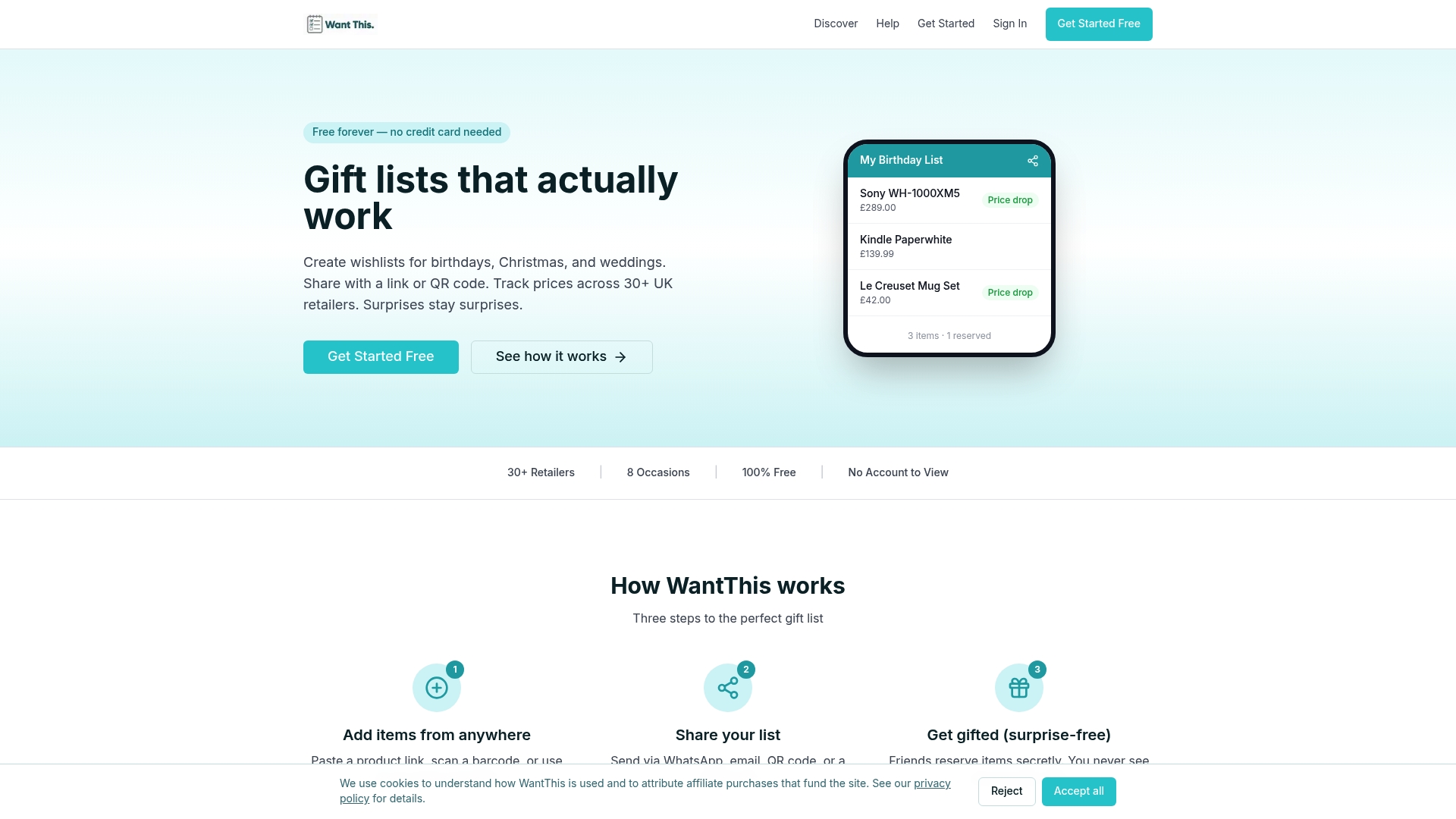
- Gifters can view a list or reserve an item easily.
- Reservations can help keep surprises intact and reduce duplicate gifts.
- Browser extension and mobile apps help with adding items on the go.
| Step | What you do |
|---|---|
| Create a list | Add items by pasting links from any retailer |
| Organise | Sort by occasion: birthday, wedding, Christmas, baby shower |
| Share | Copy the link and turn it into a QR code for invites or posters |
| Track | Watch for price drops on saved items before buying |
Start a free list on the WantThis landing page and generate your first shareable link today.
FAQ
Can you scan the QR code on a gift card?
Yes, most gift cards that include a QR code are designed to be scanned with a standard phone camera, usually to redeem or check the balance. Always check the card is from a legitimate retailer before scanning, since the destination determines the safety of the code rather than the code itself.
Does the Amazon Wish List show your address?
A standard Amazon Wish List does not display your shipping address to visitors by default, though some sharing settings can reveal more detail depending on how the list is configured. It is worth checking the specific privacy settings on any wishlist platform before sharing a link widely.
How to generate QR for products?
Copy the product or wishlist URL, paste it into an online QR generator or a platform’s built-in share tool, choose a file format such as PNG or SVG, then download the image. Always test the finished code on a phone before printing or distributing it.
How do I send someone my Wish List?
Copy your wishlist’s share link from the platform and send it directly by message or e-mail, or turn that same link into a QR code for printed invitations and posters. Platforms that support pasting product links from any retailer make building the list itself faster before you share it.
Sources
- QR Codes - what’s the real risk?
- QR Code Governance: How Businesses Can Manage The Risks Of Quishing