
How to paste a product link and save an item: UK guide

TL;DR:
- Copying product links and saving them in a universal list like WantThis is quick and captures essential details. Using browser tools or share menus allows fast saving and organised management for family or personal shopping needs. WantThis supports price tracking across UK retailers and private reservations to prevent duplicate gifts.
Copy any product URL and paste it into a wishlist or dedicated service in under 30 seconds. That is the whole method. On desktop, click the address bar, press Ctrl+C, then paste into your chosen list. On mobile, tap the share icon and choose “Copy link,” then paste wherever you need it.
Two quick options to get started right now:
- Paste into WantThis: Go to wantthis.co.uk, open or create a list, paste the product URL into the “Add item” box, and WantThis automatically pulls in the title, image, and current price.
- Browser bookmark: Press Ctrl+D (or Cmd+D on Mac) to save the page instantly, then organise it into a folder later.
WantThis is the recommended option for UK shoppers because it captures price-at-save, supports sharing with friends and family, and works across hundreds of UK retailers.
Table of Contents
- Where should you paste saved links? Setting up your list
- How to paste a product link on desktop: step-by-step
- How to copy and paste a product link on mobile
- How to copy a product link on Amazon
- Browser extensions and apps that save items in one click
- How to keep saved items organised and easy to find
- Sharing lists and letting others reserve items safely
- Why WantThis works well for UK shoppers saving product links
- Key takeaways
- Why a dedicated wishlist beats a folder of browser bookmarks
- WantThis: paste links, track prices, share with family
- Useful sources
Where should you paste saved links? Setting up your list
Before you paste a single link, decide where it lives. A browser bookmark folder works for personal reference, but it stores nothing except the URL. A native app wishlist (Amazon’s Save for Later, for example) locks your items inside one retailer. A universal list like WantThis accepts links from any shop and keeps the title, image, and price alongside the URL, which is far more useful when you return to it weeks later.
To create a WantThis list, sign up free, click “New list,” and name it for the occasion: “Christmas 2026,” “Home ideas,” or “Sale finds.” That naming habit pays off immediately when you have several lists running at once. For browser bookmarks, right-click any bookmark folder and choose “New folder” with the same naming logic.
Pro Tip: Record the price when you save. A URL alone tells you nothing about what the item cost when you spotted it. WantThis does this automatically; for bookmarks, paste the price into the folder description or a note.
Good collection names to create from the start: Birthday, Home & Kitchen, Sale Finds, Christmas, and Baby Shower. Keeping lists organised by occasion means you never hunt through a single sprawling folder when a gift occasion arrives.
How to paste a product link on desktop: step-by-step
The fastest desktop method uses the address bar directly, not a right-click menu.
- Open the product page in Chrome, Edge, Firefox, or Safari.
- Click the address bar (or press F6 / Cmd+L on Mac) to highlight the full URL.
- Press Ctrl+C (Windows) or Cmd+C (Mac) to copy.
- Switch to your wishlist or WantThis tab.
- Click the “Add item” or URL field and press Ctrl+V / Cmd+V to paste.
- Save or confirm the item.
If the URL contains tracking parameters (anything after a ? such as utm_source=email), you can delete from the ? onwards before pasting. The product page will still load correctly, and the saved link is cleaner. This matters because some tools that copy item links report instability when URLs carry session-specific fragments — stripping them keeps your saved link working long-term.
| Browser | Highlight address bar | Copy | Paste |
|---|---|---|---|
| Chrome | F6 or Ctrl+L | Ctrl+C | Ctrl+V |
| Edge | F6 or Ctrl+L | Ctrl+C | Ctrl+V |
| Firefox | F6 or Ctrl+L | Ctrl+C | Ctrl+V |
| Safari (Mac) | Cmd+L | Cmd+C | Cmd+V |
Alternatively, right-click a product link on a page (not the address bar) and choose “Copy link address” to grab the URL without opening it first. This is handy when you are browsing a category page and want to queue several items quickly.
How to copy and paste a product link on mobile
On both Android and iPhone, the share menu is the most reliable route.
Android:
- Open the product page in Chrome or your browser.
- Tap the Share icon (the box with an arrow) in the browser toolbar.
- Tap “Copy link” — the URL is now on your clipboard.
- Open WantThis in your browser (or your notes app) and long-press the text field to paste.
For saving directly within the Google app, you can also go to Saved → All saved items → Add → Link and paste the URL there, as Google’s Android save feature supports adding links to personal collections this way.
iPhone:
- Open the product page in Safari or Chrome.
- Tap the Share icon (the box with an upward arrow).
- Tap “Copy” from the share sheet, or long-press the URL in the address bar and tap “Copy.”
- Switch to WantThis in your browser, or another app, and long-press to paste.
Adding a note at save time takes five seconds and saves real frustration later. When you paste into WantThis, there is a notes field where you can type “size 8” or “for Mum’s birthday” before confirming.
Pro Tip: Keep WantThis open in a browser tab on your phone. After copying a link from the share sheet, you can switch straight to it and paste without hunting for the page.
How to copy a product link on Amazon
Amazon’s URLs are long and include session data, but the method is straightforward.
Desktop:
- Open the product page on Amazon.co.uk.
- Click the address bar and copy the full URL (Ctrl+C).
- Optionally, shorten it to
https://www.amazon.co.uk/dp/[ASIN]by keeping only the domain and the/dp/segment followed by the 10-character ASIN code. This is the most stable Amazon link format. - Paste into WantThis or your list.
Mobile:
- Open the Amazon app or Amazon.co.uk in your mobile browser.
- On the product page, tap the Share icon (top right in the app).
- Tap “Copy link” from the share sheet.
- Paste into WantThis or your notes.
In the Amazon app, you can also tap the three-dot menu (⋮) and select “Share” to access the same copy option.
Pro Tip: Note the product title or ASIN when you save an Amazon link. Amazon occasionally changes product page URLs or merges listings, so a saved URL alone can become unreliable over time. WantThis captures the title and image at save time, giving you a record even if the URL later redirects.
Browser extensions and apps that save items in one click
Installing a save extension removes the copy-paste step entirely. Instead of copying a URL and switching apps, you click the extension button while on the product page and the item is saved immediately.
WantThis does not need an extension: paste the link into your list in any phone or desktop browser and the title, image, and price are pulled in automatically. Where a retailer blocks metadata scraping, you can edit the details manually before confirming. The WantThis features page explains how adding items works.
Other single-click extensions exist for specific retailers. ShopCart, for example, targets Amazon and lets users save products into organised lists quickly. These retailer-specific tools are fast within their supported shops but require switching to a different tool for other retailers.
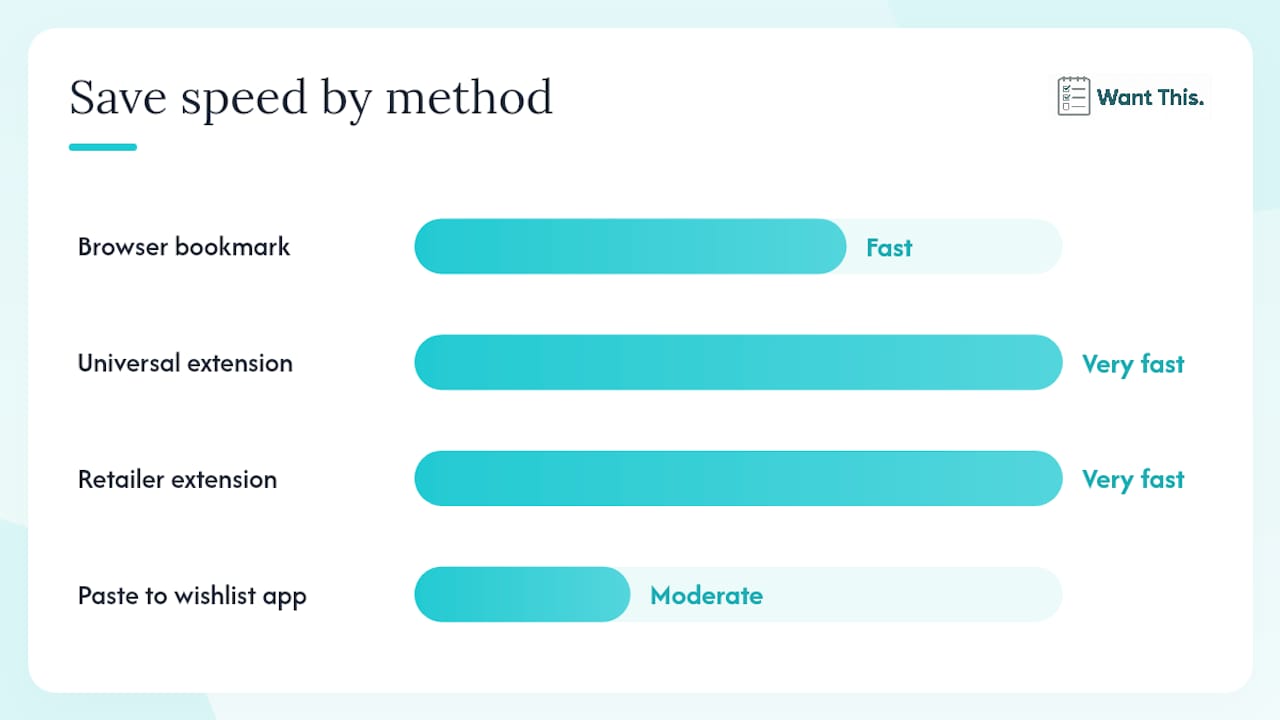
| Method | Speed | Works across all retailers | Captures price | Sharing & reservations |
|---|---|---|---|---|
| Browser bookmark | Fast | Yes | No | No |
| Browser extension (universal) | Very fast | Yes (most) | Yes (where available) | Depends on service |
| Retailer-specific extension | Very fast | No | Yes | No |
| Paste URL into wishlist app | Moderate | Yes | Yes (where available) | Yes (e.g. WantThis) |
Pro Tip: Check extension permissions before installing. A save extension needs to read the current page to capture product data — that is expected. Avoid extensions that request access to all browsing history or login credentials, which go well beyond what saving a product link requires.
How to keep saved items organised and easy to find
Saving a link is only half the job. An unorganised collection of URLs is nearly as useless as no collection at all.
A simple checklist for every item you save:
- Tag by recipient or category — if your tool supports it.
Keeping separate lists for different occasions also prevents the duplication problem that ruins gift surprises. When everyone adds items to a shared list and can see what others have reserved, nobody buys the same thing twice. The WantThis blog on finding deals with wishlists covers price-tracking habits in more detail.
Pro Tip: Consolidate retailer-specific wishlists (Amazon, ASOS, John Lewis) into one universal WantThis list. Cross-device access, price tracking, and sharing all work from a single place rather than requiring you to log into three separate accounts.
Sharing lists and letting others reserve items safely
The most practical use of a saved product list is sharing it before a birthday or Christmas so family members can buy from it without duplicating gifts.
Steps for sharing securely with WantThis:
- Open your list and click “Share.”
- Copy the share link and send it via WhatsApp, email, or message.
- Friends and family can privately mark items as reserved or bought — the wishlist owner does not see who reserved what, so surprises stay intact.
The WantThis sharing feature handles the reservation logic automatically, which is the main advantage over a shared notes document or a screenshot.
Privacy points to keep in mind:
- Never paste payment details, passwords, or account credentials into a shared list or note.
- Some retailer URLs include your account session token — strip tracking parameters before sharing a link publicly.
- Be cautious with links copied while logged into a retailer account, as they may expose your username or order history to anyone who clicks them.
- Use a wishlist service with private reservations rather than a public shared document when coordinating gifts.
Pro Tip: WantThis’s reservation system means the buyer marks an item privately, so the gift recipient never sees who is buying what. This is the key difference between a proper wishlist service and a shared Google Doc.
Why WantThis works well for UK shoppers saving product links
WantThis is built around the paste-and-save flow. You open a list, paste any product URL from any UK retailer, and WantThis pulls in the title, image, and current price automatically. Where a retailer blocks automated metadata, you can edit the details manually in seconds. Universal save tools that accept pasted URLs and pull product metadata represent the most practical approach for shoppers who buy across multiple retailers, and WantThis applies this to the UK market specifically.
Key features relevant to saving and managing product links:
- Price tracking — across hundreds of UK retailers with drop alerts.
To save your first item: open WantThis, create or select a list, paste the product URL into the “Add item” field, check the auto-filled title and price, add a note if needed, and click Save. The item appears in your list with a price history from that moment forward.
WantThis tracks prices across more than 30 UK retailers, making it a practical tool for shoppers who want to know whether a saved item has dropped in price before they buy.
Key takeaways
Pasting a product link and saving the item takes under 30 seconds on any device — the key is choosing a list that captures price and title alongside the URL, not just the link itself.
| Point | Details |
|---|---|
| Copy the URL first | Use the address bar (Ctrl+L then Ctrl+C) or the mobile share menu to grab the product link reliably. |
| Paste into a list that captures metadata | A service like WantThis pulls title, image, and price at save time, so the item stays identifiable if the URL changes. |
| Add a note and occasion tag | One line at save time (“size 10, for Dad’s birthday”) prevents confusion when you return to the list later. |
| Keep your list open for speed | Keeping WantThis open in a browser tab on your phone or computer makes pasting a copied link quick. |
| WantThis for UK shoppers | WantThis supports paste-to-save, price tracking across hundreds of UK retailers, and private gift reservations from one free account. |
Why a dedicated wishlist beats a folder of browser bookmarks
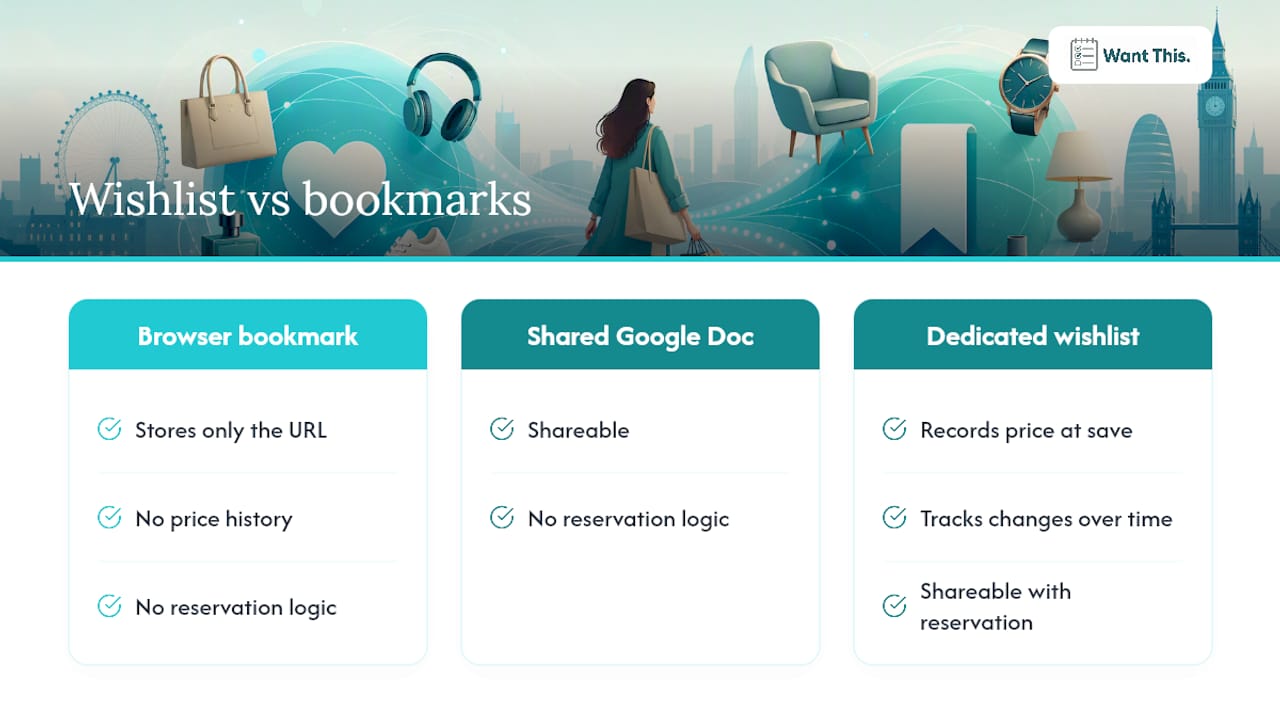
Browser bookmarks are fine for articles you want to read later. For products you are considering buying, they fall short almost immediately. A bookmark stores the URL and nothing else. Return to it three weeks later and you have no idea what the item cost when you saved it, whether the price has changed, or whether someone in your family has already bought it.
The conventional wisdom is that any saving method is good enough — just bookmark it and come back. That advice ignores how product pages actually behave. Prices change daily on major UK retailers. Items go out of stock. URLs get redirected when a retailer restructures its catalogue. A bookmark that pointed to a £45 item might now show a £62 replacement, with no record of what you originally saw.
A dedicated wishlist service solves all three problems at once. It records the price at save, tracks changes over time, and lets you share the list with a reservation system so nobody buys the same gift twice. The privacy trade-off is real: you are giving a third-party service access to your shopping intentions. But for coordinating family gifts, that trade-off is worth it. A shared Google Doc has no reservation logic. A screenshot has no price history. A browser bookmark has neither.
The habit worth building is small: every time you spot something you might want or might give as a gift, paste the link into a proper list rather than leaving a tab open. Tabs close. Lists persist.
WantThis: paste links, track prices, share with family
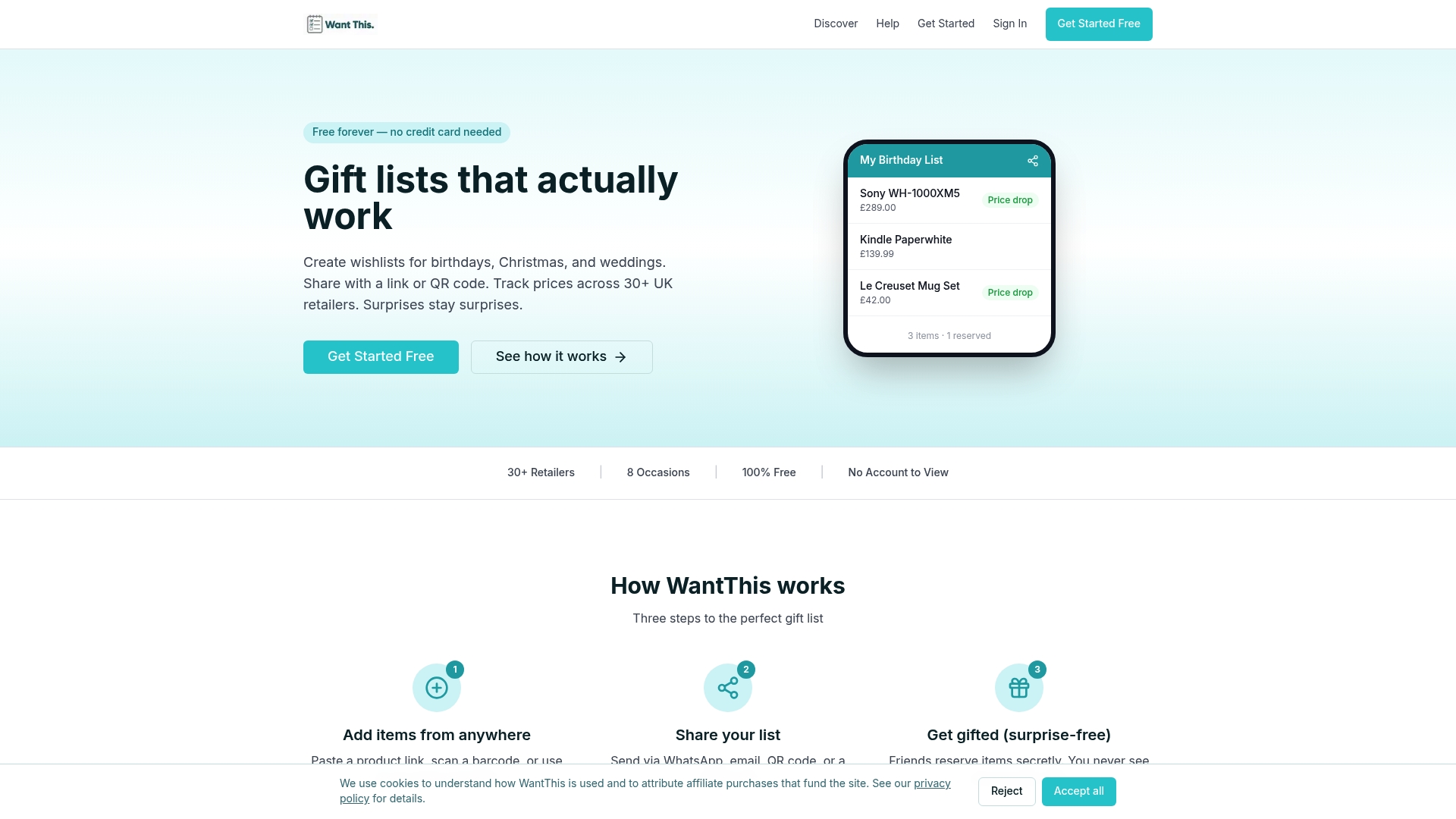
WantThis gives UK shoppers a free, dedicated place to paste product links from any retailer and keep them organised by occasion. Unlike browser bookmarks or retailer-specific wishlists, WantThis captures the title, image, and price the moment you save an item, then tracks that price going forward so you know exactly when to buy.
The core features in one place:
- Price tracking — across hundreds of UK retailers with drop alerts sent to you.
- Share lists — with friends and family, with private reservations so gifts stay a surprise.
Create your free WantThis list and paste your first product link today. It takes under a minute to set up, and your saved items are accessible from any device immediately.
Useful sources
- Save links, images & more - Android
- Copy Item Link button in Inspector or Viewer toolbar - Feedback - DEVONtechnologies Community
- windingwind/zotero-actions-tags discussions
- /copy: Copy Item | ArcGIS REST APIs | Esri Developer
- Universal Shopping Cart (Save From Any Website) | Free Wishlist + Shopping Board
- ShopCart - Save and Organize Amazon Products
- Linking items to each other - Question - forums.tropy.org