
Android wishlist app setup for UK shoppers: quick guide

Set up a wishlist on Android in five steps: install an app from Google Play or open a web-based wishlist in Chrome, sign in or create an account, create your first list, add items by pasting links, then share the list and enable price alerts. If you install an app, watch for three permissions during install: notifications (for price alerts), storage (for saving images), and internet access (required for syncing).
Quick-start checklist:
- [ ] Install the app from Google Play, or open a web-based wishlist in Chrome
- [ ] Sign in or register an account
- [ ] Create a named list and set privacy
- [ ] Add items via URL, share sheet, or manual entry
- [ ] Share the list and turn on price alerts
Key takeaways
Setting up a wishlist app on Android takes five steps, and the reservation and price-alert features are what make a universal app genuinely useful for UK gift-giving.
| Point | Details |
|---|---|
| Five-step setup | Install, sign in, create a list, add items, then share and enable alerts. |
| Privacy default for gifts | Use “shared by link” so recipients can view and reserve without making the list public. |
| Price alerts need two settings | Enable notifications inside the app AND in Android’s notification settings. |
| Reservation protects surprises | Friends reserve items quietly; the list owner never sees who claimed what. |
| WantThis for UK shoppers | Free and works in your Android phone’s browser with nothing to install, with price tracking across hundreds of UK retailers. |
Table of Contents
- How to set up an Android wishlist app from Google Play
- How do you create your first wishlist on Android?
- How to add items to your wishlist on Android
- Organising and managing items inside your wishlist
- How to share lists and let friends reserve gifts without spoiling surprises
- How do price tracking and alerts work for UK retailers?
- Cloud sync, backup, and how to clear a wishlist
- Why a universal wishlist app beats store-specific registries for UK shoppers
- WantThis: a free wishlist that works in your Android browser
- Sources
How to set up an Android wishlist app from Google Play
Open Google Play and search for your chosen wishlist app. Before tapping install, check the developer name, star rating, and the number of reviews. A well-maintained app will have recent updates and a developer who responds to user feedback. Google Play’s content reporting tools let you flag suspicious listings, which is a useful reminder to vet any app before granting it permissions.
Once installed, you’ll be prompted to sign in. Most wishlist apps offer email registration or a social sign-in via Google. Using your Google account speeds things up and ties the app to your existing Android identity, which matters for cloud sync later.
Permissions to expect:
- Notifications — needed for price-drop alerts; grant this one
- Storage — used to cache product images; generally safe to allow
- Internet access — mandatory for syncing and price tracking
- Location — sometimes requested but rarely essential; decline unless the app explains why
Android’s permission model lets you review and revoke any permission later via Settings > Apps. If an app requests access to contacts or camera without a clear reason, that’s worth questioning.
Pro Tip: If the Play Store prompts you for payment details during a free app install, it’s a standard Google account prompt, not a charge. You can skip it safely.
Common sign-in problems usually come down to a mismatched Google account. If the app won’t load after install, check that your Play Store account matches the Google account signed in on the device.
How do you create your first wishlist on Android?
Creating a list takes under a minute. Tap the “New list” or “+” button, give it a name that reflects the occasion (for example, “Birthday — June” or “Christmas 2026”), and choose a category or occasion type if the app supports it. Some apps let you add an emoji to make lists easier to scan at a glance.
Privacy settings matter most here, especially for gift lists:
- Private — only you can see it; good for personal shopping notes
- Shared by link — anyone with the link can view it; the right default for most gift occasions
- Public — visible to anyone; useful for inspiration lists, less so for personal gifts
For birthdays, weddings, and baby showers, “shared by link” is a commonly recommended default. It lets you send the list to family and friends without making it searchable by strangers. Some apps also let you set a collaborator, which means a partner or co-organiser can add items alongside you.
How to add items to your wishlist on Android
There are four practical methods, and the fastest depends on where you’re shopping.
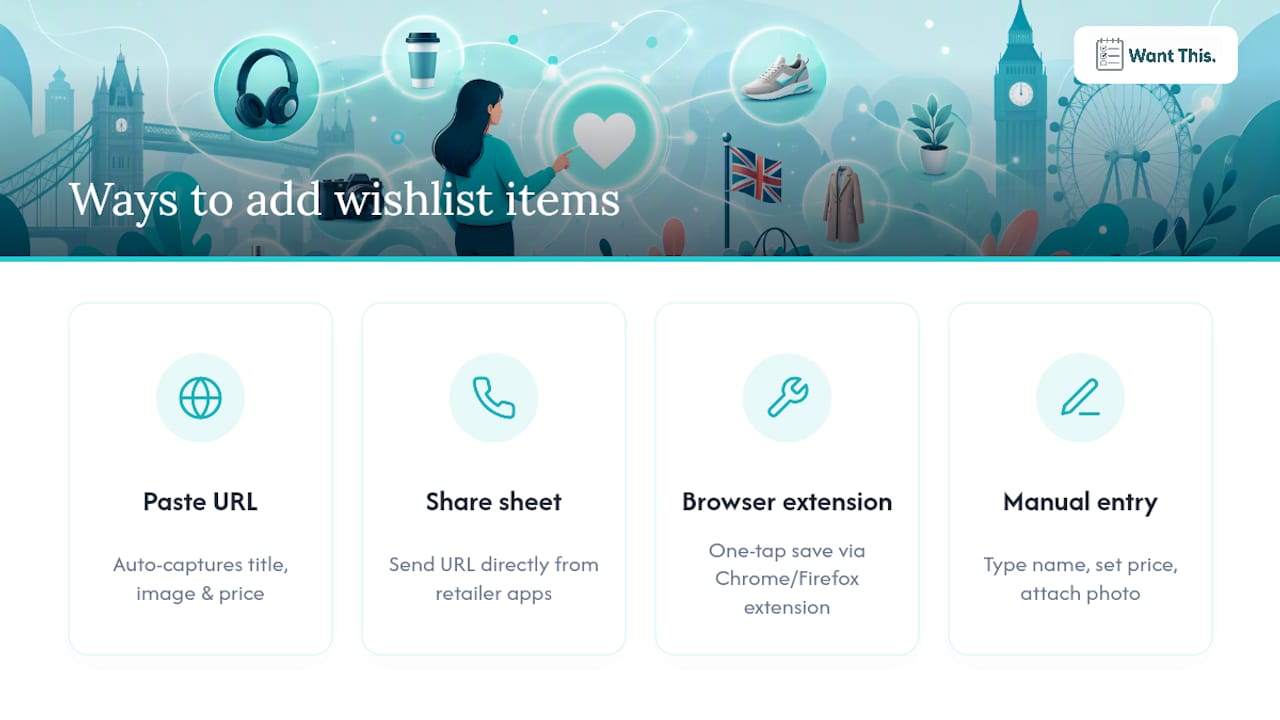
Paste a product URL. Copy the link from any UK retailer’s website or app, open your wishlist app, and paste it into the “Add item” field. The app pulls in the product title, image, and current price automatically. This works across most major UK retailers and is the quickest route for desktop-to-phone shoppers.

Use the Android share sheet. While browsing a retailer’s app, tap the share icon and select your wishlist app from the list. This sends the product URL directly without copying and pasting. Not every retailer app supports this cleanly, but it works well on most.
Your phone’s browser. If your wishlist works on the web, open it in Chrome and paste links there. Adding the site to your home screen from Chrome’s menu makes it open like an app.
Manual entry. For gift ideas without a URL (a local shop find, a handmade item, or something from a catalogue), add the item manually: type the name, set an estimated price, attach a photo from your gallery, and add a note.
Pro Tip: When saving items from UK retailers, check that the price shown is VAT-inclusive. Some trade or wholesale sites display prices excluding VAT, which can make an item look cheaper than it is at checkout.
WantThis supports pasting links from any online retailer with automatic title, image, and price capture, making this the most friction-free method for UK shoppers building lists across multiple stores.
Organising and managing items inside your wishlist
Keeping a list tidy prevents the classic problem of duplicate gifts. Most wishlist apps let you reorder items by dragging, and some support priority tags or category labels (for example, “clothing,” “tech,” “books”) to group similar items.
For each item, add a note with specifics: size, colour, preferred seller, or a link to an alternative retailer. Set a quantity if you want more than one. These details save your gift-buyers from guessing and reduce the chance of someone buying the wrong variant.
The most useful feature for social gift-giving is the reserve or mark-as-bought flag. When a friend reserves an item, it’s hidden from other viewers so two people don’t buy the same thing. You, as the list owner, don’t see who reserved what, so the surprise stays intact. For a deeper look at how this works in practice, the guide on tracking bought items on a gift list covers the workflow clearly.

Managing multiple lists is straightforward: most apps show a home screen with all your lists, and you switch between them with a single tap. Naming lists clearly by occasion and year keeps things organised as they accumulate. The guide on managing multiple wishlists by occasion has practical tips for keeping things tidy across birthdays, Christmas, and weddings.
How to share lists and let friends reserve gifts without spoiling surprises
Sharing on Android is quick. Open the list, tap the share icon, and copy the link or send it directly via WhatsApp, email, or any messaging app. Friends who receive the link can view the list in a browser without installing anything, which removes a common barrier for less tech-savvy family members.
Reservation works quietly. A viewer taps “reserve” on an item, and it’s marked as claimed for other viewers. The list owner sees only that the item is reserved, not who reserved it. This is the mechanism that prevents duplicate gifts while keeping birthdays and Christmas surprises intact.
Key sharing controls to know:
- Revoke access by regenerating the share link; the old link stops working immediately
- Invite-only access (where supported) restricts viewing to named email addresses
- No-account viewing lets recipients browse and reserve without signing up
For group occasions, WantThis also offers a Secret Santa organiser with an automatic name draw, which pairs well with shared wishlists for office or family exchanges.
How do price tracking and alerts work for UK retailers?
Enable price tracking per item after saving it. The app monitors the retailer’s listed price and sends an alert when it drops. You can typically choose your alert channel: push notification, email, or both.
WantThis tracks prices across hundreds of UK retailers, with price history and drop alerts built into the wishlist view. That breadth matters for UK shoppers who spread purchases across Amazon UK, John Lewis, Argos, and independent retailers rather than a single store.
A few practical caveats:
- Price alerts reflect the retailer’s listed price at the time of the check; flash sales or basket-level discounts may not always trigger an alert
- Regional pricing variations (for example, a product priced differently on a UK versus EU storefront) can cause occasional mismatches
- Set a realistic threshold: a 5–10% drop is a meaningful alert; 1–2% is noise
Push notifications need to be enabled in your Android notification settings as well as inside the app. If alerts aren’t arriving, check both places.
Cloud sync, backup, and how to clear a wishlist
Once you’re signed in, cloud sync keeps your lists consistent across devices automatically. Confirm it’s active by checking the app’s account or settings screen for a sync toggle.
If you need to clear a list, look for the option to remove items individually or delete the whole list in the list’s settings. Note that clearing a wishlist is typically irreversible, so export or screenshot anything you want to keep first.
For account recovery, visit Myaccount to manage your Google credentials if you lose access. Most wishlist apps tied to a Google sign-in restore your lists automatically once you’re back in. Google’s privacy policy details what data is retained during sign-in and Play interactions, which is worth a read if you’re sharing lists that contain personal occasion details.
Why a universal wishlist app beats store-specific registries for UK shoppers
Store registries lock your list to one retailer. A universal wishlist app collects items from any UK retailer into a single shareable list, which is more practical when your wish list spans Amazon UK, ASOS, and a specialist bookshop.
The privacy and reservation advantages are particularly relevant for UK social gift-giving, where group coordination across WhatsApp and email is the norm. A single shareable link that works in a browser, with no sign-up required for viewers, removes friction for the whole group.
WantThis is built specifically for this use case: UK retailers, occasion-based lists, price alerts, and a reservation system that protects surprises. The best wishlist apps for UK shoppers comparison covers the category in more detail if you want to weigh your options.
A note on the features that matter most
The feature that genuinely changes how gift-giving works isn’t the list itself — it’s the reservation system. Without a shared list, the usual approach is a group chat full of “has anyone bought the X yet?” messages, with someone often buying a duplicate anyway. The quiet reserve function solves that without anyone having to coordinate manually.
Price alerts are the other underrated feature. UK retail pricing shifts frequently around key dates: Black Friday, Amazon Prime Day, and the January sales. Saving an item to a wishlist in October and getting an alert in November is a genuinely useful way to time a purchase rather than hoping you remember to check.
WantThis: a free wishlist that works in your Android browser
WantThis gives UK shoppers a free, ready-to-use wishlist platform that covers every step in this guide. Visit WantThis in Chrome or any browser on your Android phone, paste a product link from any UK retailer, and your list is live in under a minute.
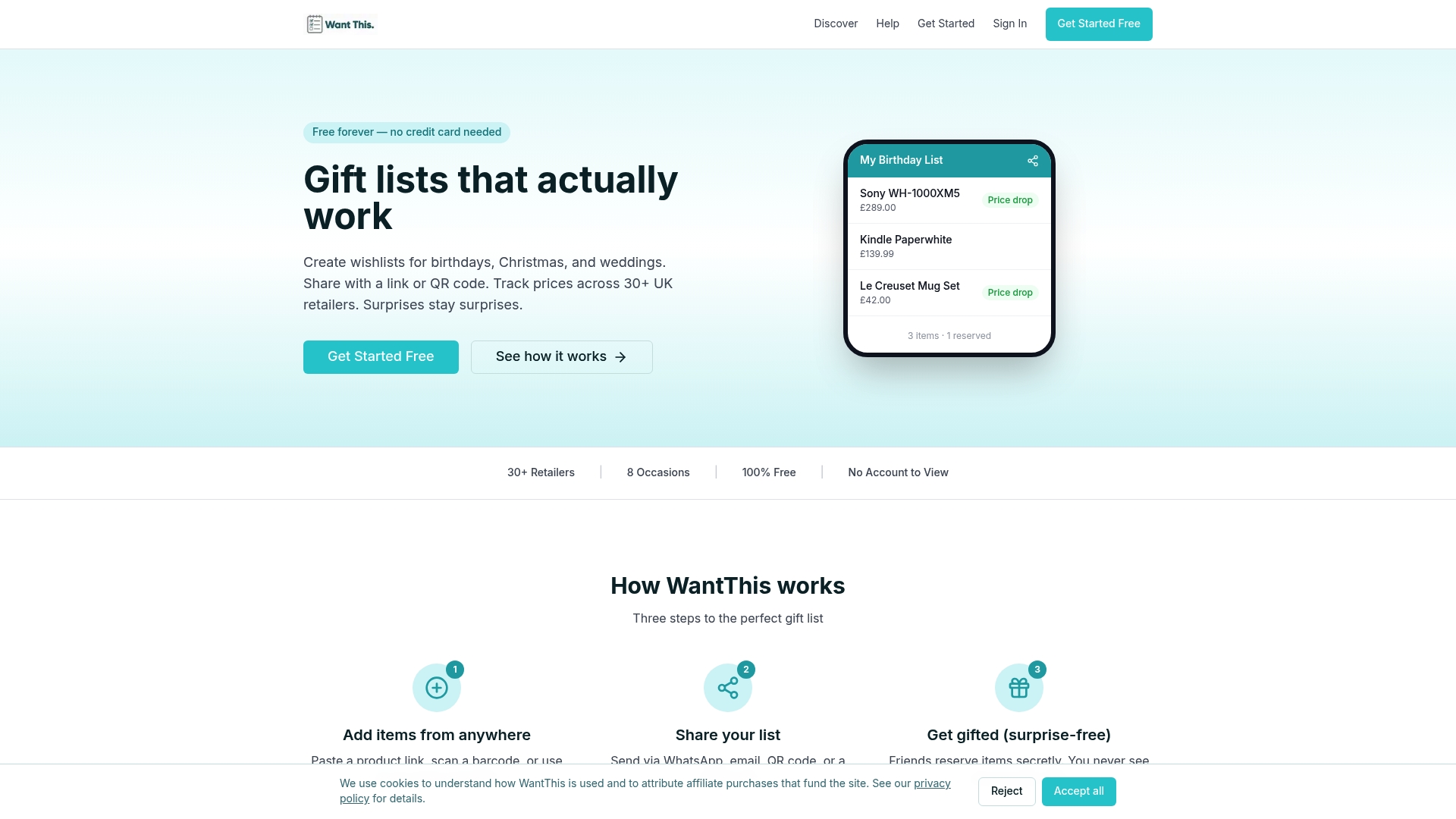
Key features relevant to this guide:
- Paste links from any UK retailer with automatic title, image, and price capture
- Price tracking across hundreds of UK retailers with drop alerts via push or email
- Private reservation and mark-as-bought so surprises stay intact
- Share lists via link — recipients can view and reserve in a browser, no account needed
- Secret Santa organiser with automatic name draw
To get started, create a free account at wantthis.co.uk, build your first list, and share the link with family or friends ahead of your next occasion.
Sources
Official help and developer resources: