
How to Add to a Wishlist from Safari on iPhone, iPad and Mac

To add a product to a wishlist from Safari, use one of three routes. Turn on a wishlist extension in Safari, use the Share button on iPhone or iPad, or copy the page address and paste it into your list. The paste route works on every device and every shop. The extension and share routes are quicker once you have set them up. This guide covers each one, plus what to do when a product refuses to import properly.
TL;DR
- On a Mac: install a Safari extension, switch it on in Safari’s Extensions settings, then click its button on any product page.
- On iPhone or iPad: open the Share button, scroll along the bottom row, tap More and switch the extension on. After that it sits in your share sheet.
- No extension? Copy the product link from the address bar and paste it into your list. It takes about ten seconds.
- If details are missing: add the title, image and price by hand, or try the link from the retailer’s main product page rather than a search or basket page.
- WantThis is free and keeps products from different UK shops in one list you can share privately.
Table of Contents
- Why Safari makes this feel harder than it should
- Method 1: add to a wishlist from Safari on a Mac
- Method 2: add to a wishlist from Safari on iPhone or iPad
- Method 3: copy and paste the link
- Which method suits you?
- What if Safari has no wishlist button?
- When product details do not import
- Build a list people can actually use
- Sharing without spoiling the surprise
- Add to your wishlist the easy way with WantThis
- Our view on saving from Safari
- FAQ
- Sources
Why Safari makes this feel harder than it should
Safari has its own saving tools, but none of them is a wishlist. Bookmarks, Favourites and the Reading List save pages, not products. They do not store a price, show a photo in a tidy grid, or let a friend reserve a gift. Apple describes the options as bookmarking a site, adding it to Favorites or putting an icon on the Home Screen, all of which are ways to revisit a page.

That is why people search for an “add to wishlist” button in Safari. A proper wishlist tool treats each product as an item: a name, a picture, a link back to the shop, and a place in a list for a birthday, Christmas, a wedding or a room makeover.
On top of that, many retailers only offer a wishlist inside their own shop. Save a jumper in one, a kettle in another and a book in a third, and you end up with three lists nobody can see at once. A single list that accepts links from any shop avoids that. We go deeper on the idea in our guide to a wishlist for different stores.
Method 1: add to a wishlist from Safari on a Mac
On a Mac, a Safari extension is the neatest approach. It adds a button to the toolbar, and one click on a product page sends the item to your list.
- Get the extension. Safari extensions are installed from the Mac App Store.
- Open Safari, then go to Safari Settings (older macOS versions call it Preferences) and choose Extensions.
- Tick the checkbox next to the extension to enable it. Apple’s guide to using Safari extensions on your Mac lists these same steps.
- Open a product page in any shop.
- Click the extension’s button in the toolbar, check the details it picks up, choose the list and save.
If the button does not appear, open the Extensions settings again and check that the box is ticked. Some extensions also ask permission to read the websites you visit. Without that permission they cannot see the product on the page, so allow it for the shops you use.
We cover how these tools work, and what they can and cannot read from a page, in how a wishlist extension lets you save gifts from any online shop.
Method 2: add to a wishlist from Safari on iPhone or iPad
On iPhone and iPad, extensions live in the share sheet rather than the toolbar. You switch them on once, and they stay available.
Turn the extension on
- Open Safari and go to any web page.
- Tap the Share button.
- Scroll to the end of the bottom row of icons and tap More.
- Switch the extension on, then tap Done. This is the same enable, reorder and use routine for share and action extensions that works for any app that offers one.
Save a product
- Open the product page in Safari.
- Tap Share.
- Tap the extension in the row.
- Confirm the name, image and price, pick your list and save.
To keep it within thumb reach, touch and hold the grabber icon next to the extension in the More screen and drag it to the top of the list. You will use it often in the run-up to Christmas, so it is worth the five seconds.
WantThis also has iOS and Android apps and a browser extension for building lists on the move, so you can add things as you find them rather than saving a pile of tabs for later.
Method 3: copy and paste the link
The paste method needs no installation, no permissions and no settings. It works on a work laptop where you cannot add extensions, on a friend’s phone, and in any browser.
- In Safari, open the product page.
- Tap or click the address bar so the web address is selected, then copy it. On iPhone, tap the address bar and choose Copy.
- Open your wishlist and choose to add an item.
- Paste the link and let the details load.
- Check the title, picture and price, then save.
When you add a product link, WantThis can import available product details to help build your list. That means you rarely type anything beyond a note such as a size or colour. There is a step-by-step walkthrough in our quick guide to pasting a product link and saving the item.
Tips for a clean link
- Use the product page itself, not a search results page, a category page or a basket.
- Choose the size or colour first if the shop puts it in the page address.
- Avoid long shared links from social media apps when you can open the shop’s own page instead. The shop’s page gives the importer a clearer product to read.
Which method suits you?
| Situation | Best route | Why |
|---|---|---|
| Browsing on a Mac | Safari extension | One click from the toolbar |
| Browsing on iPhone or iPad | Share sheet extension or app | Saves while you scroll, no copying |
| Shared or work computer | Paste the link | Nothing to install |
| Extension does not recognise a shop | Paste the link | You control the page you save |
| Saving from an email or message | Paste the link | There is no Safari page to click from |
Most people end up using two routes: an extension when they are actively browsing, and paste for everything else.
What if Safari has no wishlist button?
This happens more than you would expect. A few common causes and fixes:
- The extension is installed but off. On Mac, check the box in Safari’s Extensions settings. On iPhone or iPad, check the More screen in the share sheet.
- The extension cannot see the page. Allow it to run on the shop’s website when Safari asks, or in the extension’s settings.
- You are in a Private tab. Extensions may be limited there, so try a normal tab.
- The shop is unusual. Smaller independent shops sometimes lay out their pages in a way that automatic tools struggle to read. Paste the link instead.
- Nothing suits your setup. Paste the link. It is always available, and it has the same end result.
If you are curious about the older bookmark-style trick, our page on the wishlist bookmarklet and what to use instead explains how it works and why most people now prefer an extension or a pasted link.
When product details do not import
Import is helpful, but it depends on what the retailer’s page shows. If a title, picture or price comes through blank or wrong, these are the usual reasons and fixes.
- You saved a page that is not a single product. Search results and category pages list many items. Open one product and try again.
- The page loads details slowly. Some shops fill in the price after the page appears. Wait for it to finish, then copy the link.
- The shop hides details behind a login or cookie banner. Accept the banner or sign in, then copy the link from the product page.
- The link is a shortened or tracking link. Open it in Safari, wait for the product page to load, then copy the full address.
- A picture will not load. Save the item anyway and add a note. The link back to the shop is the part that matters.
A good habit is to treat your saved price as a guide. Prices and stock change, so follow the link to the retailer to check the latest price and availability before you buy. If timing matters, price tracking for wishlists can alert you to price drops across 30+ UK retailers and show price history, which is handy for deciding whether to buy now or wait.
Build a list people can actually use
Saving the product is the first step. The list is only useful if it is organised and the right people can see it.
- Name lists by occasion. “Birthday”, “Christmas” and “Kitchen refresh” are easier to share than one long list called “Stuff”. Our piece on ways to manage multiple wishlists for every occasion has layouts that work.
- Mix price points. A few small items, a few mid-range ones and one or two big wishes give people choices.
- Add notes. Size, colour, model number or “the 500 ml one” saves a returned gift.
- Include things you want to plan, not just receive. A room makeover list can hold anything from a lamp to a bamboo item such as a wrap and bag organiser for a kitchen drawer, so you can compare and decide in one place.
If you want a first-time walkthrough, how to make a UK wishlist in minutes takes you from an empty page to a shareable list.
Sharing without spoiling the surprise
Once your list is ready, share it with family and friends. They can privately reserve a gift or mark it as bought, so the same present is not bought twice. The point is that the person who made the list does not see who reserved what, so surprises stay intact.
That is useful for birthdays and baby showers, and especially in a family where three relatives all want to buy the same box set. Our page on sharing your wishlist explains how to send a list to friends and family. For ideas on how a finished list can look, you can browse public wishlists by topic.
If your group exchanges presents rather than buying for one person, the Secret Santa organiser runs automatic name draws, so nobody needs a hat and a pile of paper.

Add to your wishlist the easy way with WantThis
WantThis is a free UK wishlist and gift-list platform. You can add items from any online retailer, sort them into lists for birthdays, Christmas, weddings, baby showers or your own plans, and share them privately so friends and family can reserve gifts. It works with a browser extension and iOS and Android apps, and a pasted link works everywhere else.
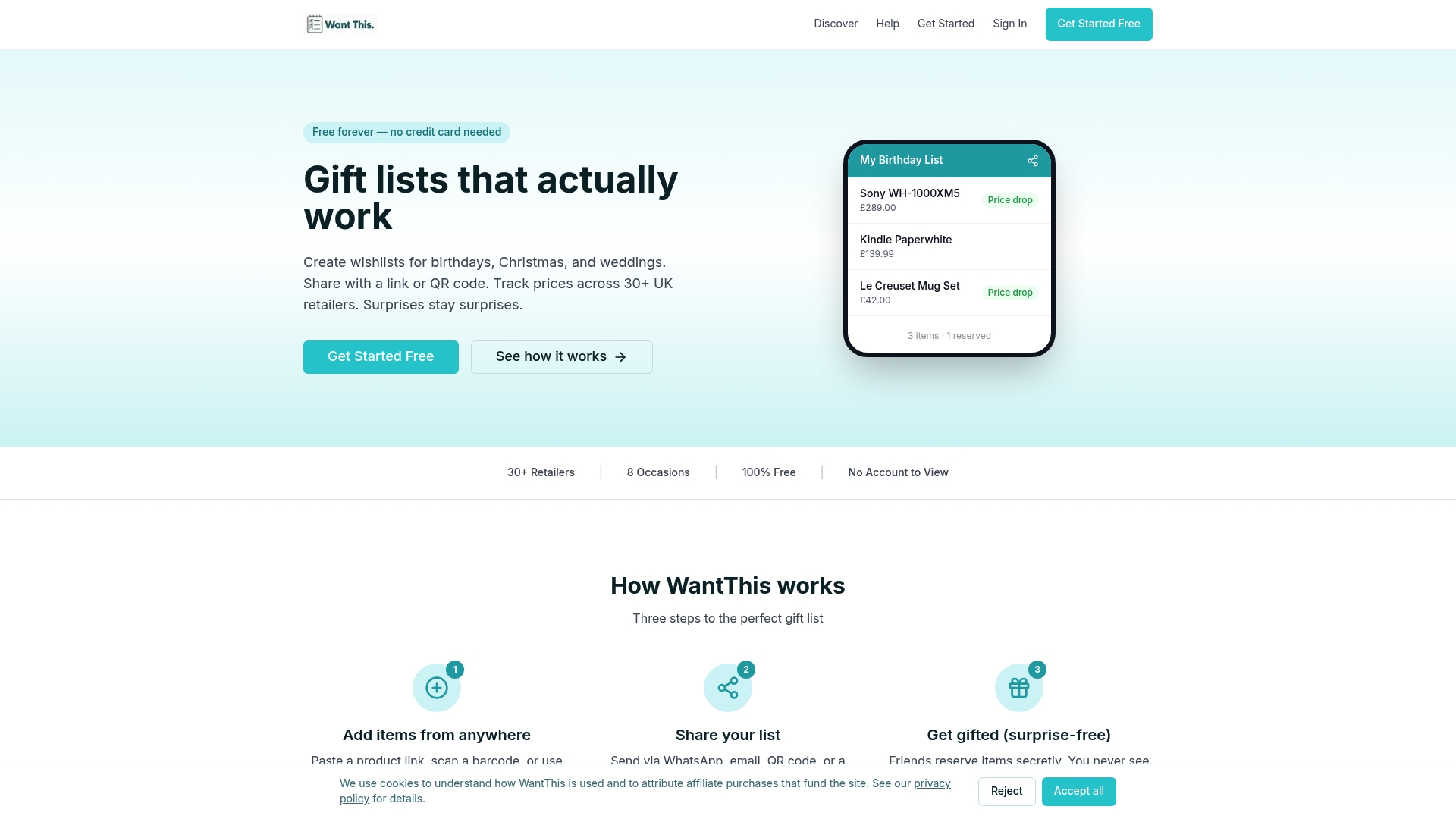
If you are in Safari right now, copy the link to the product you have open and start your free list on WantThis. If you want inspiration first, browse our gift ideas by category, from tech and home to books, fitness and experiences. Where we use affiliate links, we disclose them.
Our view on saving from Safari
We built WantThis around a simple observation: people find things to want in all sorts of places, and no single shop sees all of them. Safari is where a lot of that browsing happens, on a phone on the sofa or a Mac at a desk.
So we think the best approach is flexible rather than fussy. Use an extension or app when you are in the flow of browsing. Paste a link when you are not. Either way, the product ends up in one list, next to things from other UK retailers, with the link back to the shop so you can check the latest price and availability.
We also think a wishlist should work for more than gifts you would like to receive. Some lists are purchases you want to plan, such as a bedroom refresh, a first flat or a baby’s nursery. Shared lists and private reservations help the people around you choose well without spoiling anything.
Start simple. Save five things you really want, give the list a clear name, and share it. You can add structure later.
Stuart
FAQ
How do I add a product to a wishlist while using Safari?
The fastest way is a Safari extension: enable it in Safari’s settings on a Mac, or in the share sheet on iPhone or iPad. Open the product, click or tap the extension, choose your list and save. If you do not have one, copy the page address and paste it into your list instead.
Can I add to a wishlist from Safari on an iPhone?
Yes. Tap the Share button on the product page, scroll the bottom row, tap More and switch your wishlist extension on. After that it appears in the share sheet each time. You can also paste the product link into your list without any setup.
Can I save a product by copying and pasting its link?
Yes, and it works in any browser. Copy the address of the product page, paste it into your wishlist and check the details that load. WantThis can import available product details, and you can edit anything that looks wrong before saving.
Why did my product save without a picture or price?
The page was probably not a single product page, or the shop had not finished loading the details. Open the product itself, wait for the price and photo to appear, then copy the link again. You can also add details by hand.
Do I need to pay to use a wishlist from Safari?
WantThis is free to use. Prices shown on saved items come from the retailer, so follow the link to check the latest price and availability before you buy.
Sources
- Use Safari extensions on your Mac, Apple Support
- Bookmark a website in Safari on iPhone, Apple Support
- How to use action and share extensions on iPhone and iPad, iMore