
A wishlist extension lets you save gifts from any online shop

A wishlist extension is a browser add-on that saves products from any online shop into one central list, usually with a single click, so you stop juggling separate wishlists on Amazon, John Lewis, or a dozen other retailers. For most people, the best workflow is installing a trusted extension, pinning it to the toolbar, and keeping a paste-link fallback for pages it can’t read. If you’d rather not install anything, WantThis is a strong option: paste a product link from any shop into a list you can open on your laptop or phone, with price tracking across more than 30 UK retailers and private sharing so gifts don’t get duplicated.
Here’s what the rest of this guide covers:
- Installing and pinning a wishlist extension properly
- Saving items from any store, including when auto-capture fails
- Managing permissions and keeping lists private
- Sharing lists, reserving gifts, and running a Secret Santa
- Fixing the most common extension problems
Key Takeaways
A reliable wishlist extension combines one-click saving, a paste-link fallback for tricky pages, default privacy, and price tracking that turns a simple list into a genuine shopping tool.
| Point | Details |
|---|---|
| Pin the extension | An unpinned extension hides in the browser menu and loses its one-click advantage. |
| Use paste-link as backup | When a page lacks proper metadata, paste the product link instead of relying on auto-capture. |
| Check privacy defaults | Confirm lists stay private until you actively choose to share them. |
| Set clear share permissions | Choose view, edit, or reserve access so gift-givers don’t duplicate purchases. |
| Track prices, don’t guess | Use price history and alerts to judge whether a deal is genuinely worth taking. |
| WantThis covers the workflow without an install | Its paste-link saving, price tracking across hundreds of UK retailers, private reservations and Secret Santa organiser match each step above. |
Table of Contents
- How do you install and pin a wishlist extension?
- How do you add items and manage them across devices?
- What permissions does a wishlist extension need?
- How do you share lists and avoid duplicate gifts?
- How do you fix common wishlist extension problems?
- What actually matters when choosing a wishlist extension
- Why WantThis fits this workflow
- Where to check extensions and permissions
- Frequently asked questions
- Sources
How do you install and pin a wishlist extension?
Only install from official sources: the Chrome Web Store, Firefox Add-ons, or Edge Add-ons. Check the publisher name against the developer’s own website before clicking install, since copycat listings do exist.
- Search the store for the extension by name and confirm the publisher.
- Click “Add to Chrome” (or the equivalent for your browser) and approve the permission prompt.
- Open the browser’s extensions menu and click the pin icon next to the new tool.
- Visit the extension’s own page to confirm it links to mobile apps and displays a clear privacy policy.
Permission prompts usually ask to “read and change data on websites you visit.” That’s what lets the tool capture a product’s title, image, and price from the page you’re on, rather than something more invasive.
Pro Tip: A common mistake is skipping the pin step entirely. The extension still works, but it sits buried in the puzzle-piece menu, and you lose the one-click convenience that makes the whole thing worth having.
How do you add items and manage them across devices?
Once pinned, most wishlist tools give you three or four ways to save something. The toolbar button is the fastest: click it on any product page and the extension pulls the title, image, and current price automatically. Some tools also add a small floating widget to the page itself, or a right-click “Add to wishlist” option in the context menu.
When none of that works, paste the product link directly into the app instead. This matters more than it sounds, because not every page carries clean Open Graph or structured metadata for the extension to read. Smaller retailers, marketplace listings, and pages with heavy JavaScript often confuse the scraper, so it grabs the wrong image or misses the price. A reliable paste-link method fixes that in seconds. WantThis works this way by design: paste a link from any online retailer and it fetches the title, image, and price without needing a special integration for that store.
Once an item is saved, organising it takes a few taps:
- Sort items into lists by occasion (birthday, Christmas, wedding, baby shower).
- Add a note if you want a specific size, colour, or model.
- Replace the captured image manually if the scraper picked up the wrong one.
- Check the same list on your phone through mobile sync, so a change made on desktop appears instantly on the app.
Price tracking is where the extension earns its keep beyond a simple bookmark. Advanced wishlist tools monitor saved items across retailers and alert you when the price drops, often with a price-history chart showing whether today’s figure is actually a good deal or just a normal price dressed up as a discount. WantThis runs this across more than 30 UK retailers, which is genuinely handy for deciding whether to buy now or wait for a better moment. If you’re managing a long list for Christmas, some tools now let you ask an AI assistant to sort or suggest items within the list, which speeds up curation when you’ve saved forty things and need to whittle it down to ten.
What permissions does a wishlist extension need?
Most wishlist extensions request “read and change data on websites you visit,” sometimes shortened to activeTab access. In plain terms, this lets the tool see the page you’re currently viewing so it can pull the title, image, and price. It should not need access to your browsing history, your camera, or your contacts, and if it asks for those, that’s a red flag worth pausing on.
Privacy-by-default is the standard to look for. A well-built wishlist tool keeps lists private until you explicitly choose to share them, which matters more than people expect when you’re planning a surprise for a partner or organising a baby shower nobody’s meant to know about yet.
A few checks worth doing before you trust an extension with your gift plans:
- Read the privacy policy linked from the store listing, not just the app itself.
- Confirm lists default to private, with sharing available only by link when you choose it.
- Check whether reservation status (who’s claimed what) is visible only to invited people, not to the list owner or the public.
- Be wary of vague permission descriptions or a missing privacy policy altogether.
How do you share lists and avoid duplicate gifts?
Sharing is where a wishlist extension turns from a personal tool into something the whole family actually uses. Most platforms give you a shareable link with set permission levels, so you decide whether someone can only view the list, edit it, or reserve items on it.
- Generate a share link from your list and choose the permission level (view, edit, or reserve).
- Send it directly, rather than posting it somewhere public, to keep the surprise contained.
- Ask invitees to mark items as reserved or bought as they buy them.
- Check the list yourself before shopping, so you don’t duplicate someone else’s gift.
Some tools even let a gift buyer reserve an item without creating an account, which removes a real barrier for relatives who won’t sign up for a new app just to buy a birthday present.
For group gifting, a Secret Santa organiser with an automatic draw saves the usual scramble of names in a hat. WantThis handles the draw automatically.

Pro Tip: Before running a Secret Santa, agree the budget and exchange date upfront, then note both in the group description. It stops the awkward “how much were we spending?” message three days before Christmas.
How do you fix common wishlist extension problems?
Most issues fall into a small handful of categories, and nearly all of them have a quick fix.
- Item won’t capture properly: the page likely lacks clean metadata; paste the product link manually instead.
- Extension button is missing: check the puzzle-piece menu and pin it to the toolbar again.
- List not syncing to mobile: update the app, sign out and back in, and confirm you’re on a stable connection, since most sync problems trace back to cached logins or version mismatches rather than anything more serious.
- Price looks out of date: some retailers update slower than others, so treat price history as a strong guide rather than a live feed.
- Affiliate links in your list: many wishlist tools, including WantThis, use affiliate links to stay free, which is standard practice and usually disclosed on the site.
What actually matters when choosing a wishlist extension
The industry tends to sell wishlist extensions on flashy features: browser badges, AI suggestions, gamified sharing. Most of that is noise. What actually determines whether you’ll still be using the tool in six months comes down to three unglamorous things: does the one-click save genuinely work on the sites you shop, does the price tracking give you real history rather than a single alert, and does the list stay private until you decide otherwise.

Conventional advice tends to treat these extensions as interchangeable bookmarking tools. They’re not. A tool that fumbles metadata capture on half the sites you visit will quietly train you to stop using it, which defeats the entire point. It’s worth prioritising reliability of capture and a solid paste-link fallback over any single flashy feature, because that fallback is what saves you when a retailer’s page inevitably breaks the scraper.
The other underrated factor is cross-device continuity. A wishlist you can only access on the laptop where you installed the extension isn’t much use when your sister asks what you want for your birthday while you’re stood in a queue. Mobile sync isn’t a nice extra; it’s the difference between a tool you use once and one you rely on year-round.
Why WantThis fits this workflow
WantThis covers the save-and-share part of this workflow without an extension: paste a product link from any retailer and the title, image, and price come in automatically. Because your list lives online, it stays current whether you saved something on your laptop at work or spotted it on your phone at lunch.
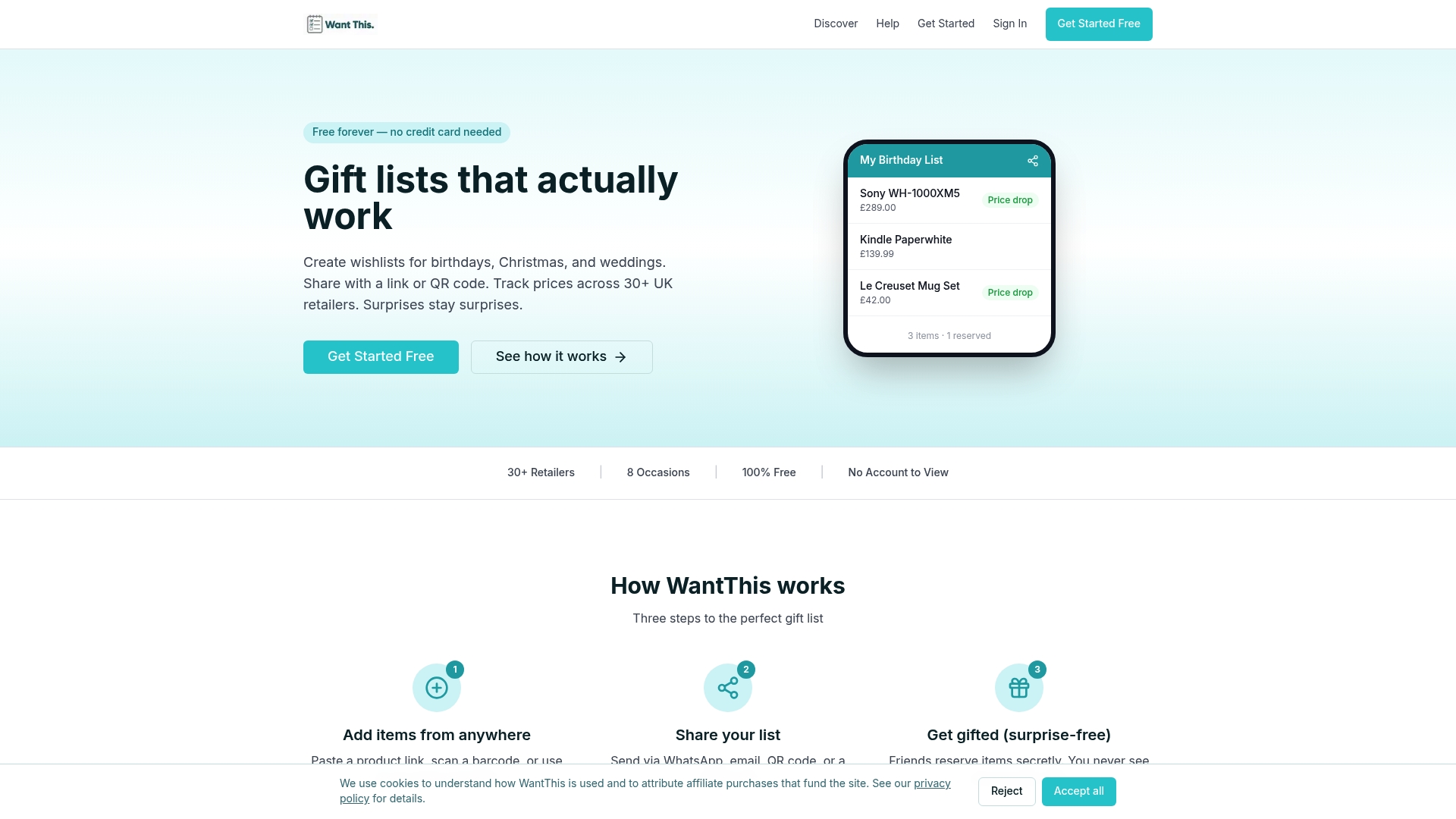
Beyond basic saving, WantThis includes price tracking across many UK retailers and alerts you to price drops, organises lists by occasion for birthdays, Christmas, weddings, and baby showers, and lets you choose exactly who you share each list with. Friends and family can reserve or mark items as bought without creating an account, which avoids duplicate gifts and keeps surprises intact. For group gifting, the built-in Secret Santa organiser runs the draw automatically. Affiliate links on saved items help keep WantThis free, and this is disclosed on the site.
To get started, sign up to WantThis for free, paste your first product link, and create a list to share with the people buying your next gift.
Where to check extensions and permissions
- Official store listings such as the Chrome Web Store confirm a publisher before you install.
- MDN’s add-on documentation explains what permissions actually mean and how to contact a developer.
- WantThis’s features page covers price tracking, sharing and Secret Santa in one place.
Frequently asked questions
Do I need to pay for a wishlist extension? Usually not. WantThis, which works without an extension, is free to use, including price tracking, sharing and the Secret Santa organiser. It’s supported through affiliate commissions when a shared list leads to a purchase, not subscription fees.
Can I use a wishlist extension on my phone as well as my laptop? Yes, provided the tool has a matching mobile app or a web version. WantThis lists live online, so items saved on one device appear on the other when you open the list.
Will people I share my list with need to create an account? Not necessarily. Many platforms, including WantThis, allow invited people to view and reserve items via a shared link without signing up, which removes friction for relatives who’d rather not download another app.
What happens if the extension can’t read a product page? Paste the product link directly into the app as a fallback. This works even when the automatic scraper fails to find a title, image, or price on the original page.
Sources
- WishApp: Free Wishlist & Gift List Maker - Chrome Web Store
- Moonsift: Wishlist & Gift List Maker - Chrome Web Store